Install Google Voices Guide

Follow these steps to turn on high-quality Google voices in Chrome for the language you want to hear in Verbanu. You only need to do this once per language.

Before you start: Use the Google Chrome browser on a computer (Windows, Mac, or Chromebook). These Google voices are not available the same way in Safari, Firefox, or on most phones.
1

Open any webpage in Chrome

Open Google Chrome and go to any webpage that has text on it — for example a news article, a Wikipedia page, or even this Verbanu page. The exact page does not matter; you only need some text so Chrome can open Reading mode.

2

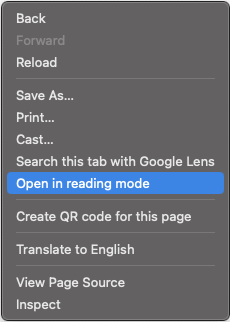
Right-click and choose “Open in reading mode”

  1. Move your mouse over empty space on the page (not on a link or image).
  2. Right-click (on a Mac with a trackpad: click with two fingers, or hold Control and click).
  3. In the menu that appears, click Open in reading mode.

If you do not see “Open in reading mode,” make sure Chrome is up to date (Chrome menu → Help → About Google Chrome), then try again on a page with lots of text.

Chrome right-click menu with Open in reading mode highlighted
Right-click the page, then choose Open in reading mode.
3

Open the Reading mode settings

Chrome opens a quieter reading view of the page. At the top you will see a small toolbar with a play button, speed (for example 1x), and a few icons.

Click the gear icon (it looks like a small wheel or cog). That opens the Reading mode settings menu.

Reading mode toolbar with play button, speed, text options, gear, and close icons
Click the gear (settings) icon on the toolbar.
4

Open Voice selection, then Languages

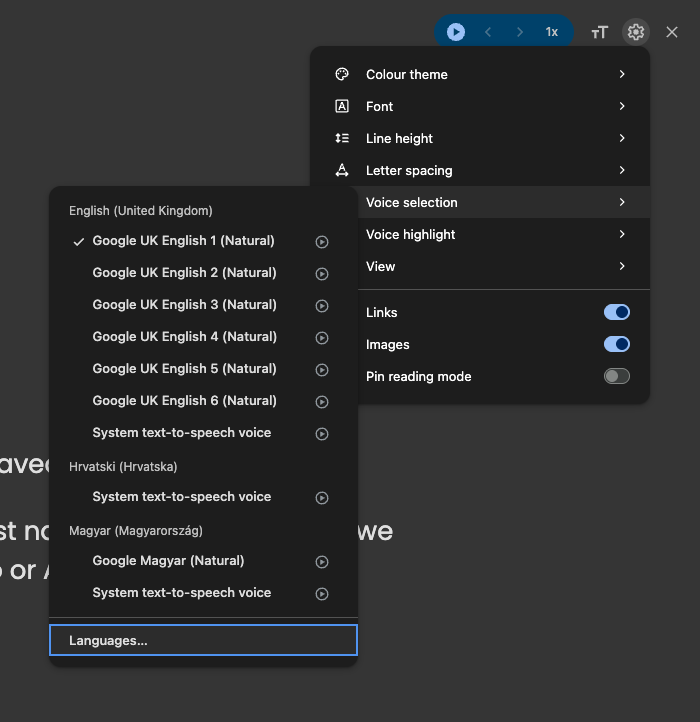
  1. In the settings menu, click Voice selection.
  2. A list of voices appears. Scroll to the bottom of that list and click Languages…

This is where Chrome lets you download Google’s natural voices for more languages.

Reading mode settings with Voice selection open and Languages button highlighted
Click Voice selection, then click Languages… at the bottom of the voice list.
5

Turn on the language you need

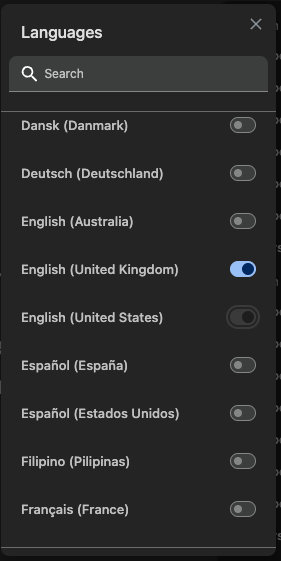
  1. In the Languages window, use the Search box at the top to find your language (for example “Spanish,” “French,” or “Japanese”).
  2. Find the language (and country variant) you want — for example Español (España) or English (United Kingdom).
  3. Click the toggle switch next to that language so it turns blue (on). Gray means it is still off.
  4. Wait a moment if Chrome needs to download the voice. You can turn on more than one language if you like.
  5. Close the Languages window when you are done (the X in the corner).
Languages panel with search box and toggles; English United Kingdom is switched on
Search for your language, then flip its switch to on (blue).
6

Pick a Google voice (optional check)

Still in Reading mode, open Voice selection again. You should now see one or more Google … (Natural) voices for the language you turned on. You can tap the small play icon next to a voice to hear a sample.

When you are finished, click the X on the Reading mode toolbar to leave reading mode. You do not need Reading mode open for Verbanu — you only used it to install the voices.

7

Use the new voice in Verbanu

  1. Open Verbanu in the same Chrome browser.
  2. Go to your classroom or start a free session.
  3. In the voice / text-to-speech settings, choose a Google … (Natural) voice for the language you installed.
  4. Hit play and listen — the audio should sound clearer and more natural.

If the new voice does not appear yet, close the Verbanu tab completely, open a fresh tab, and try again. Chrome sometimes needs a moment after downloading a voice.

Common questions

Do I have to do this on every computer?

Yes. Voices are installed in Chrome on that device. If you use Verbanu on another computer, repeat these steps there for each language you need.

What if I only see “System text-to-speech voice”?

That usually means the Google natural voice for that language is not turned on yet. Go back to Languages…, turn the language switch on (blue), wait for the download, then check Voice selection again.

Can I install voices on my phone?

This guide is for Chrome on a computer. Phone browsers and apps use different voice systems. For the best Google natural voices with Verbanu, use Chrome on a desktop or laptop.

Still stuck?

Email us at support@verbanu.com or use our contact page — we are happy to help.