Verbanu User Guide

Everything you need to go from signing in to running your first lesson — step by step, in plain language. Follow along in order the first time; later you can jump to any section from the table of contents.

Before you start:
  • Use Google Chrome on a computer (or Chrome on Android) for the best voices and playback.
  • You need a Verbanu account with Premium access (Power Learner or founding member).
  • Optional but recommended: install high-quality Google voices — see our Install Google Voices Guide.

1 Sign in to Verbanu

  1. Open app.verbanu.com/login in Google Chrome.
  2. Type the Email and Password you used when you created your account.
  3. Click the orange Sign in button.
  4. You should land on your Dashboard.

First time here? Click Sign up, create an account, then check your email for a confirmation link before signing in. New accounts may need Premium (or a founding membership) before classrooms unlock.
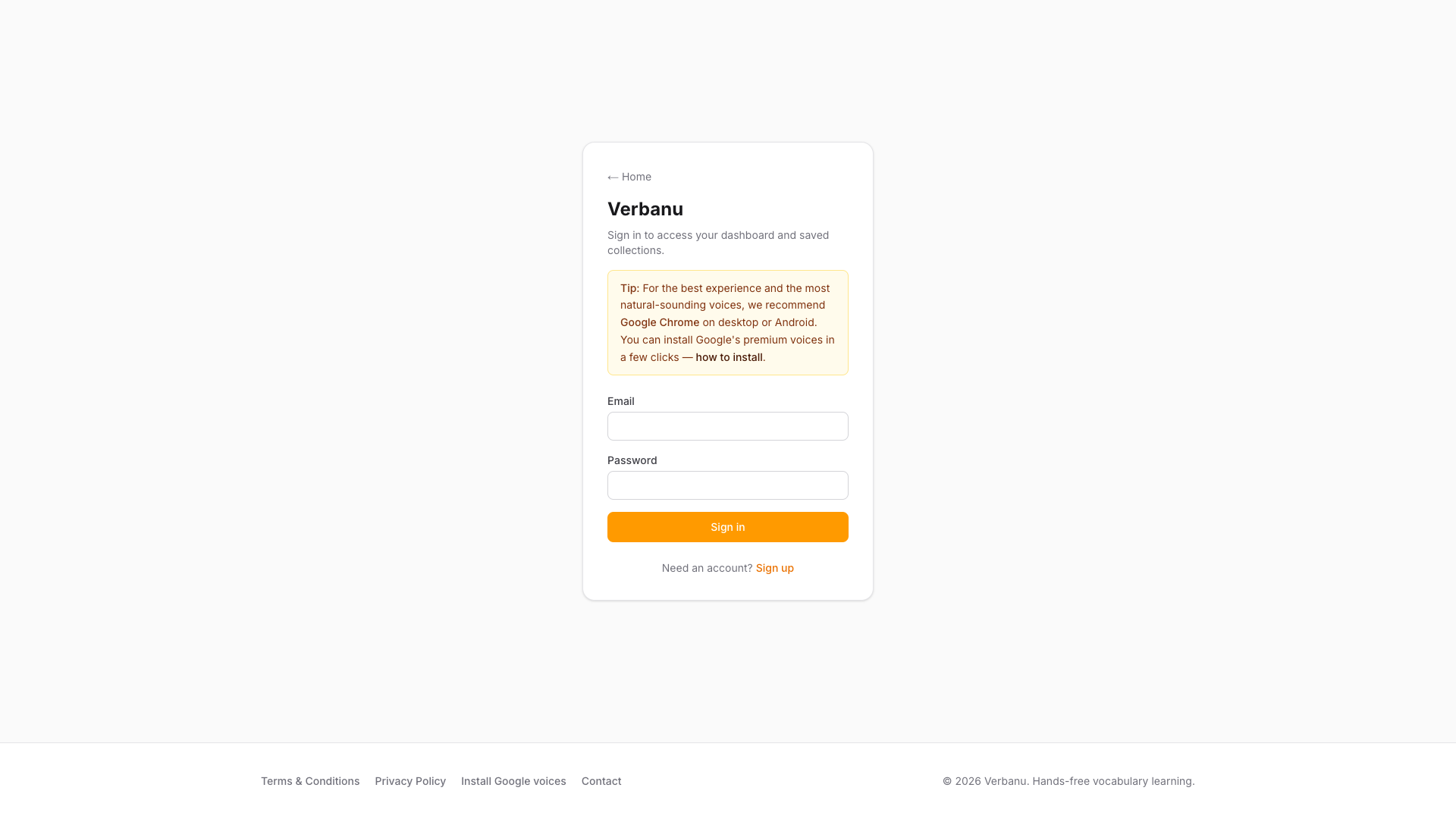
Verbanu sign-in page with email, password, and Sign in button
The sign-in screen. Enter your email and password, then click Sign in.

2 Find your way around the dashboard

The dashboard is home base. Everything you create — classrooms, word lists, and lessons — lives here.

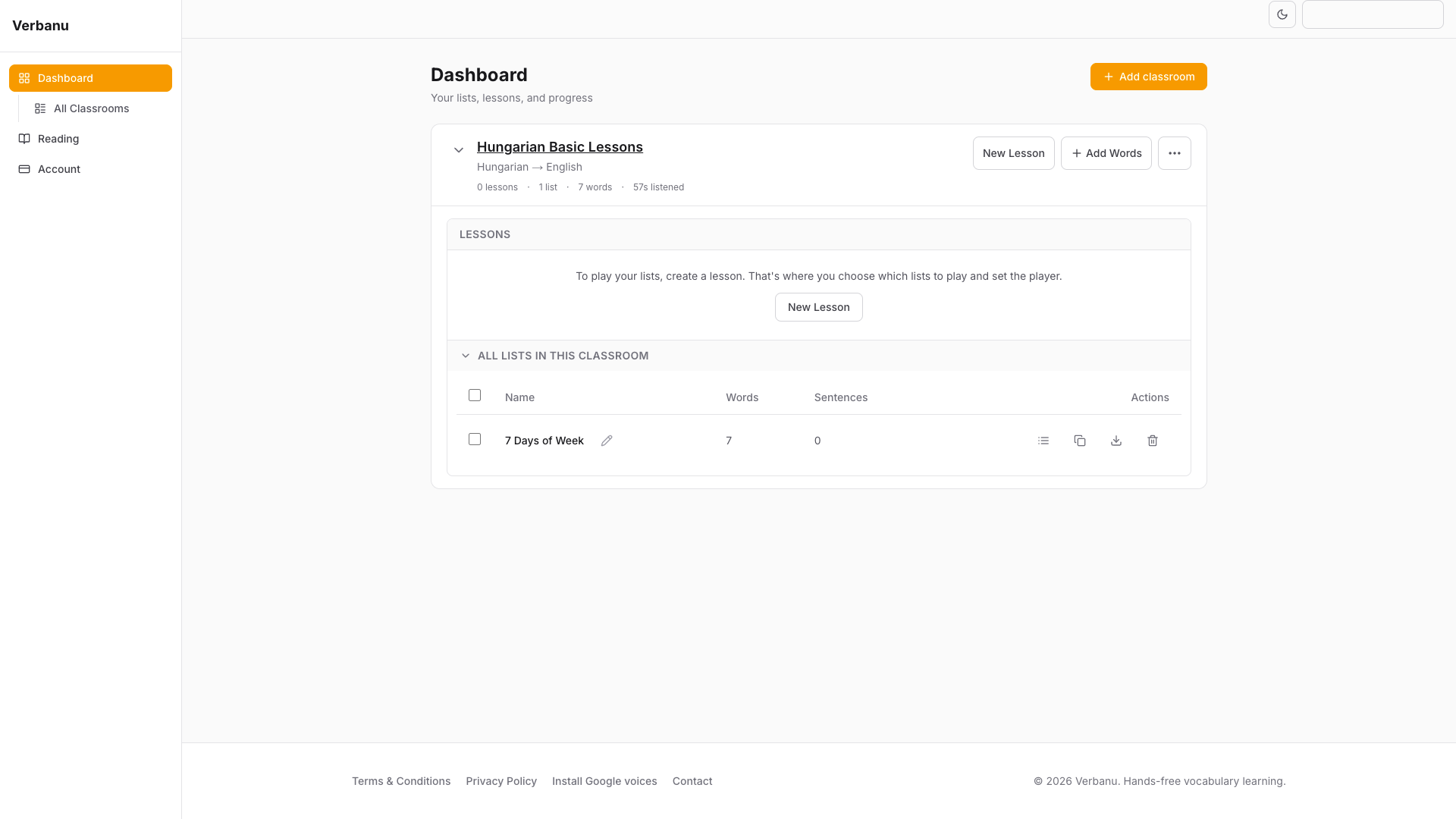
On the left (or the menu on a phone) you will see:

  • Dashboard — your classrooms and lessons
  • All Classrooms — a compact table of every classroom (appears after you create one)
  • Reading — paste longer texts and listen sentence by sentence

Each classroom shows as a card with language pair, how many lists and words you have, listening time, and buttons for New Lesson and Add Words.

Tip: If the page says you have no classrooms yet, that is normal. Go to the next section and create your first one.

Verbanu dashboard with classroom cards and sidebar navigation
Dashboard with sidebar on the left and your classrooms in the main area.

3 Create a classroom

A classroom is one language environment — for example “Spanish Trip” or “French Work Vocab.” Each classroom has its own word lists and lessons.

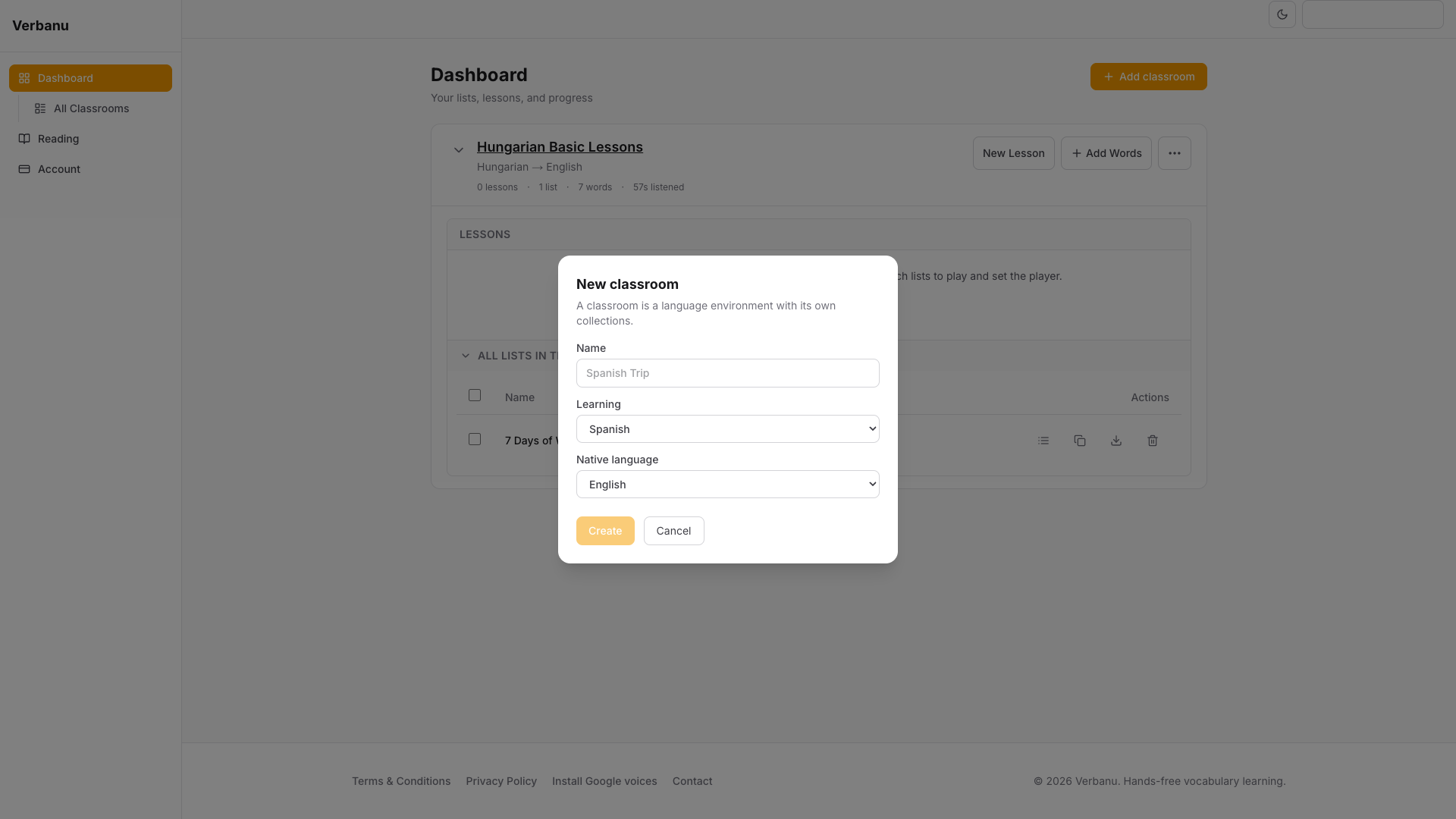
  1. On the Dashboard, click + Add classroom (or the similar button if your screen is empty).
  2. In the New classroom window:
    • Name — something you will recognize later (example: Spanish Trip)
    • Learning — the language you want to learn
    • Native language — the language you already speak
  3. Make sure Learning and Native are different languages.
  4. Click Create (or the confirm button on the form).

Verbanu opens the Add Words page for that classroom and invites you to add vocabulary. You can add words now, or skip and come back later.

Need another language pair later? Create another classroom. You can rename, clone, or delete a classroom from the ⋯ menu on its card.

New classroom dialog with name, learning language, and native language
Name the classroom and pick the language you are learning plus your native language.

4 Add words (and review them)

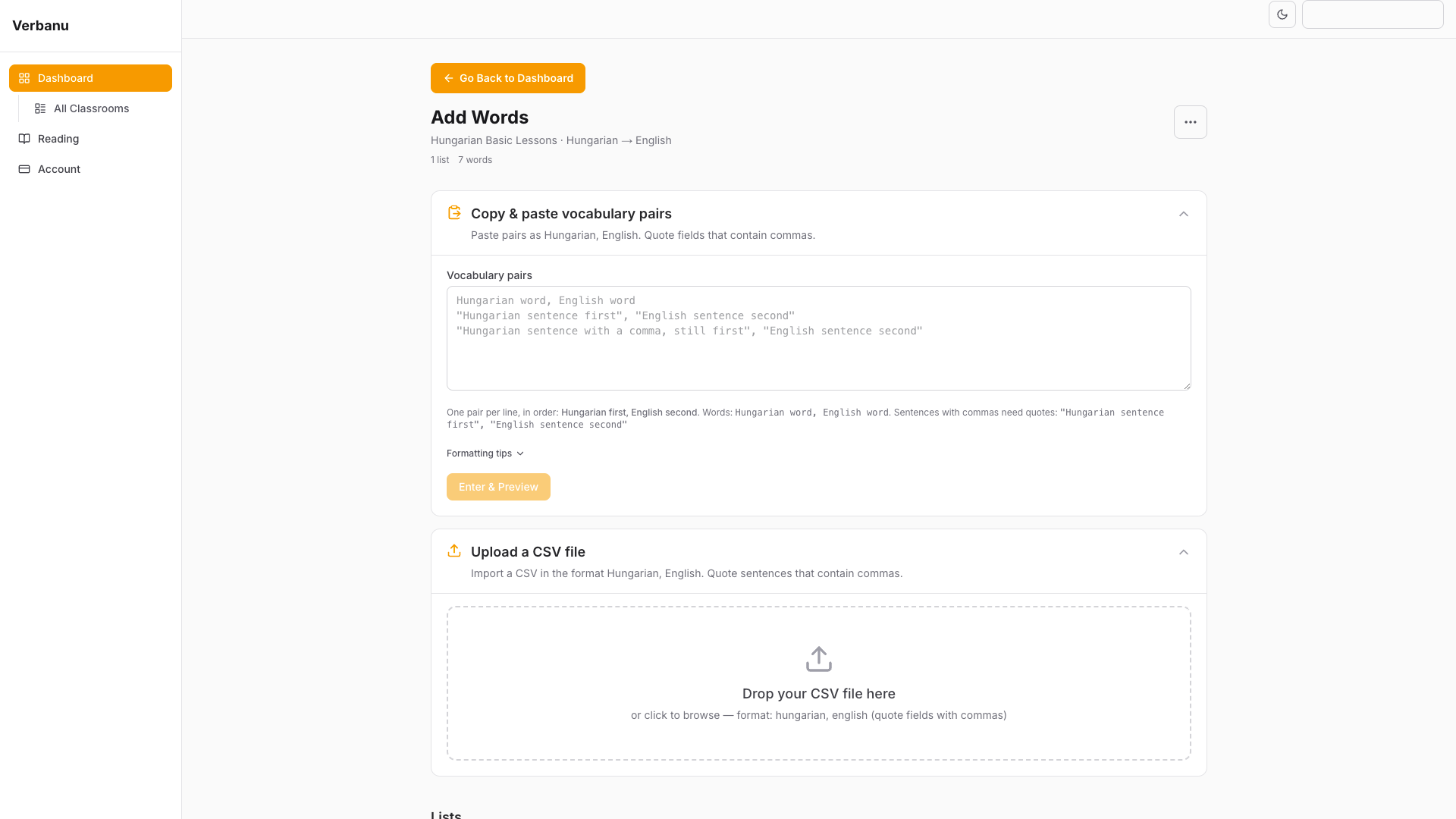
From a classroom card, click + Add Words. This is where you bring in vocabulary. You always preview and check the list before saving — that is your review step.

Paste words

  1. In the big text box labeled Vocabulary pairs, type or paste one pair per line.
  2. Put the learning language first, then a comma, then your native language. Example: hola, hello
  3. For sentences that contain commas, wrap each side in quotes, for example: "¿Cómo estás?", "How are you?"
  4. Click the orange Enter & Preview button.

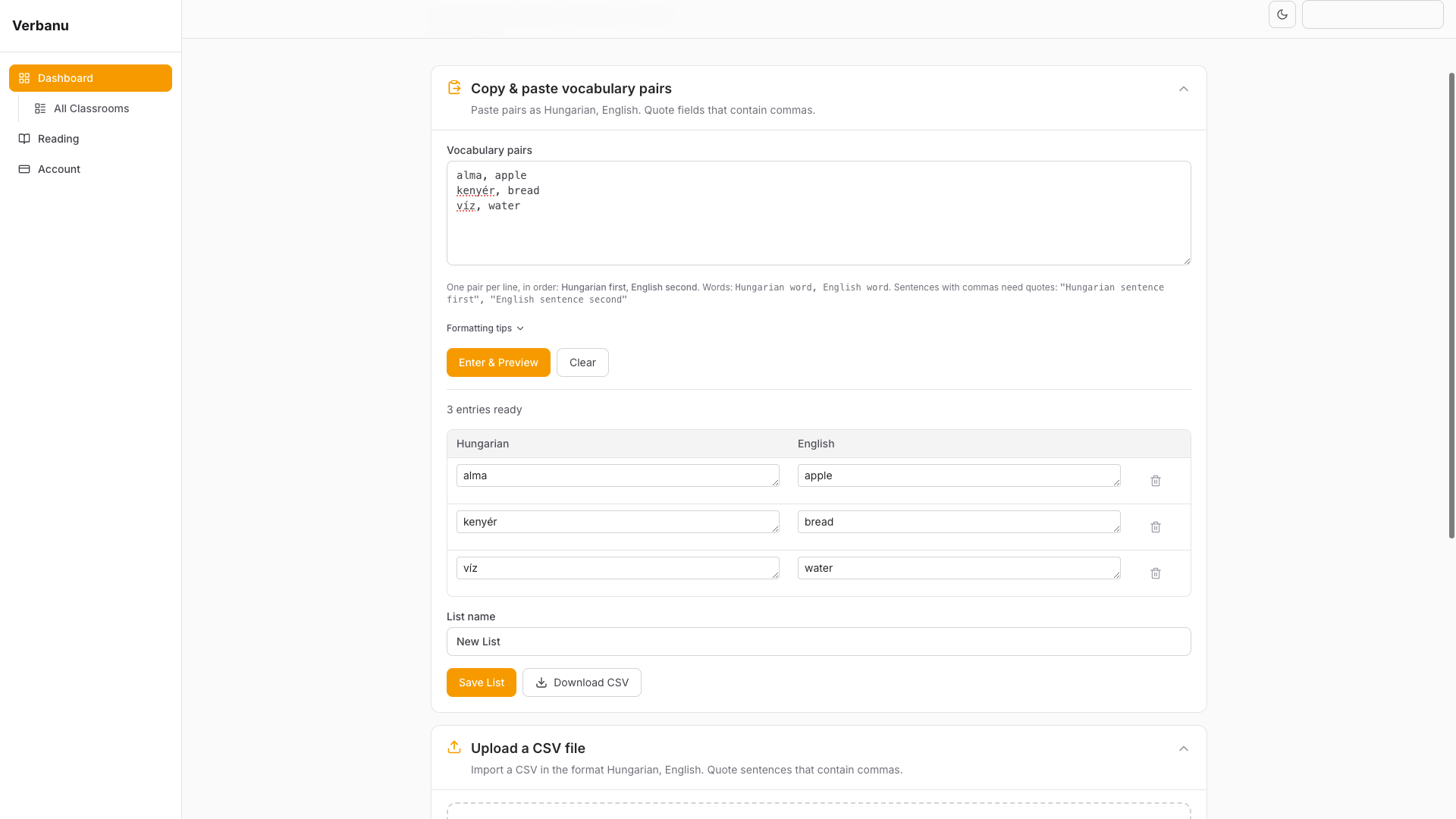
A table appears showing every entry. Fix any typos by editing the cells, or remove a bad row. When it looks right:

  1. Give the list a clear name in the list name field (for example Airport words).
  2. Click Save List.

Open Formatting tips under the text box for more examples, or download a sample CSV from there. You can also drag a .csv or .txt file onto the upload area instead of pasting.

Add Words page with vocabulary paste box and Enter and Preview button
Paste pairs, then click Enter & Preview to review before saving.

Review checklist before you save

  • Are learning and native words on the correct sides?
  • Any empty rows or accidental duplicates?
  • Is the list name something you will recognize when creating a lesson?

Only click Save List when the preview looks correct. You can edit the list again later from the dashboard.

Preview table of vocabulary pairs ready to save as a list
Preview shows how many entries are ready. Edit, then Save List.

5 Manage your word lists

After you save lists, they appear on the classroom’s Add Words page and on the classroom card on the dashboard. For each list you can usually:

  • Rename the list
  • Edit words — add, change, or remove rows, then save
  • Duplicate a list
  • Download CSV — keep a backup on your computer
  • Delete a list you no longer need (you will be asked to confirm)

If you select several lists, you may also see bulk actions to Clone, Merge (combine into one named list), or Delete.

Habit that helps: keep short, themed lists (travel, food, work) instead of one giant list. Lessons can combine several lists later.

6 Create a lesson and set up the player

A lesson is a ready-to-play package: which lists to use, how long each word stays on screen, voices, shuffle, and more. Words alone are not enough — you create a lesson to start listening.

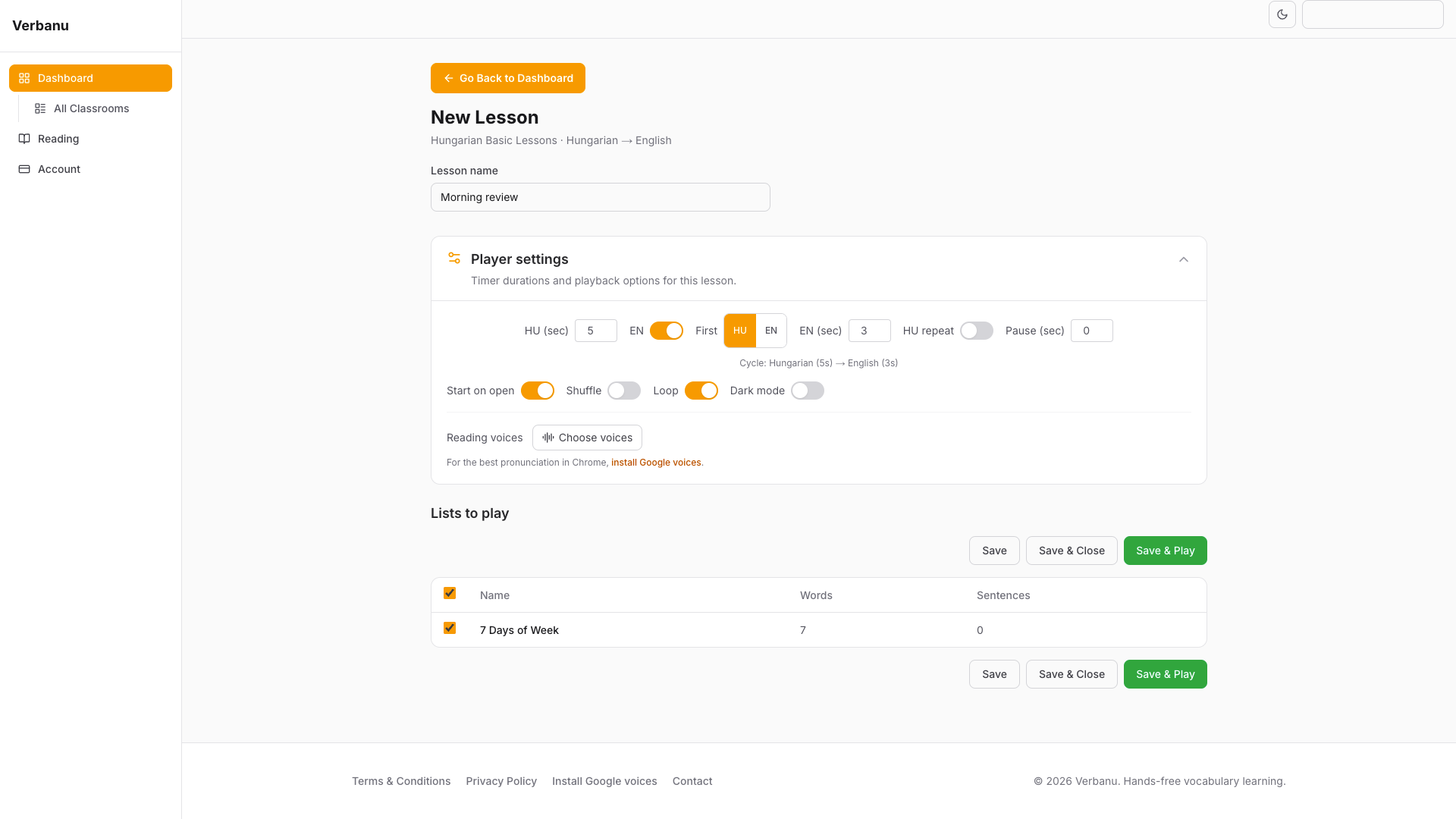
  1. On the classroom card, click New Lesson.
  2. Enter a Lesson name (example: Morning review).
  3. Open Player settings if it is collapsed. Adjust what you need (defaults work fine for a first run):
    • How many seconds the learning word stays on screen
    • Whether to show the translation, and which language appears first
    • How many times to repeat the learning word after the translation
    • Pause before the next word
    • Toggles: Start on open, Shuffle, Loop, Dark mode
    • Choose voices for learning and native languages
  4. In the lists table, check the lists you want in this lesson.
  5. Choose one of:
    • Save — keep the lesson and stay on this page
    • Save & Close — save and return to the dashboard
    • Save & Play — save and open the full-screen player right away

First time? Click Save & Play with default settings. You can change timing and voices later with the gear icon on the lesson row.

New Lesson page with lesson name, player settings, and list checkboxes
Name the lesson, pick lists, adjust player settings, then Save & Play.

7 Play a lesson

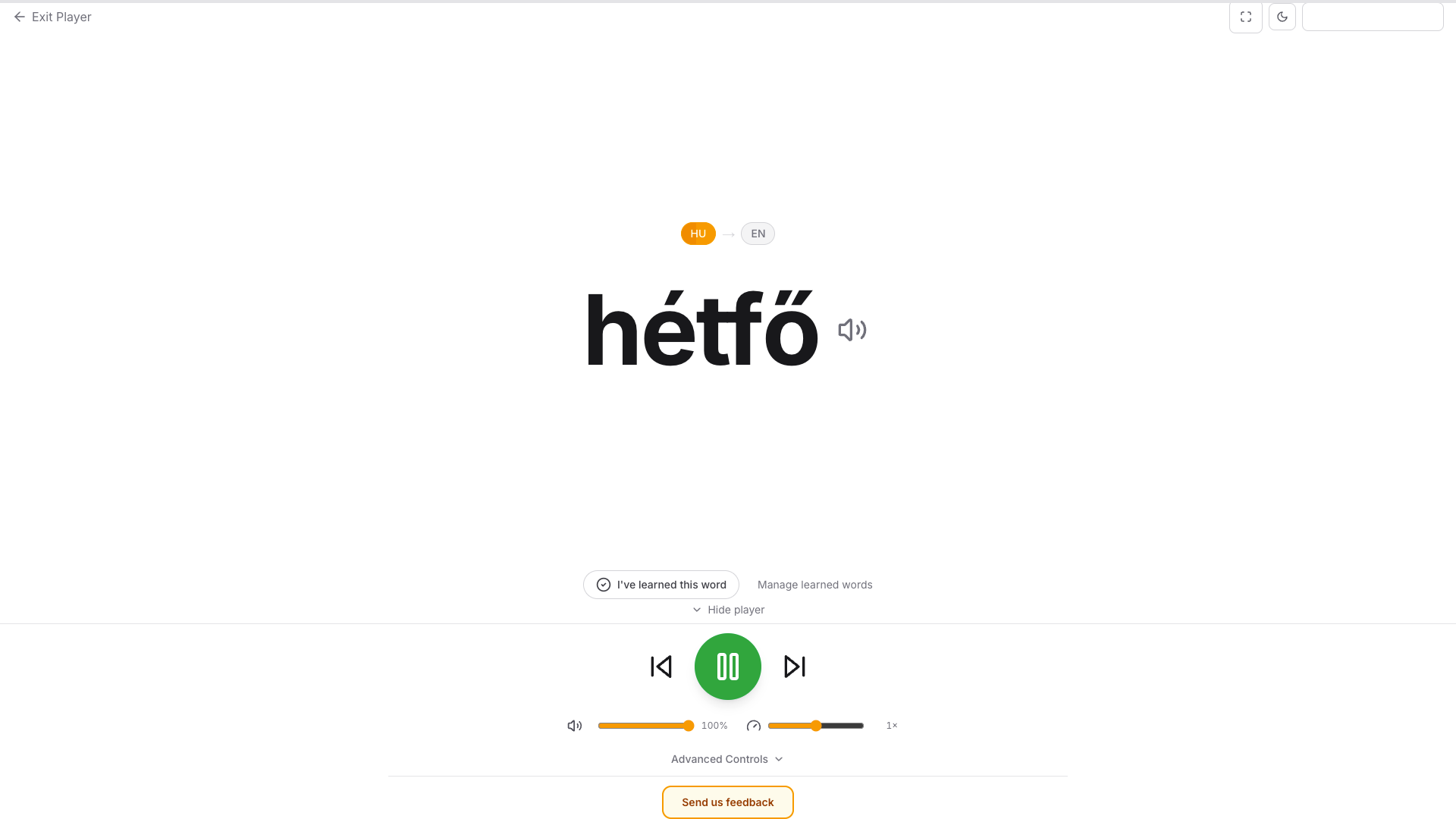
The player shows one large word at a time, speaks it aloud, then (if enabled) shows and speaks the translation. It is meant to run while you cook, work, or move around the room.

Start from the dashboard

  1. Find the lesson on the classroom card.
  2. Click the play control for that lesson.
  3. If you stopped mid-lesson earlier, a window asks Resume lesson? Choose Continue where I left off or Start from the beginning.

Player controls (bottom bar)

  • Play / Pause — start or pause the slideshow
  • Previous / Next — jump between words
  • Loop — restart the list when it ends
  • Shuffle — random order
  • Repeat one — stay on the current word
  • Audio toggles — speak the learning language and/or the translation
  • Volume and speaking speed
  • Voices — open the voice picker
  • Timer settings — change durations without leaving the player
  • Dark mode and Fullscreen — easier on the eyes / big-screen mode
  • Menu — return to the dashboard

While playing, Verbanu tries to keep your screen awake so it does not go black mid-lesson. Use fullscreen if you want a clean “billboard” view across the room.

Verbanu player showing a large vocabulary word and control bar
One word at a time. Use the bottom bar to pause, skip, change volume, or open settings.

8 Mark words as learned

When a word feels automatic, you can remove it from future play without deleting it from your lists forever.

  1. While that word is on screen, click I’ve learned this word.
  2. To review or undo, open Manage learned words. You can unmark words, or save the remaining (not-yet-learned) words as a new list.

Use this when you want shorter lessons that focus on what you still need. You can always bring a word back from Manage learned words.

9 Use Reading (optional)

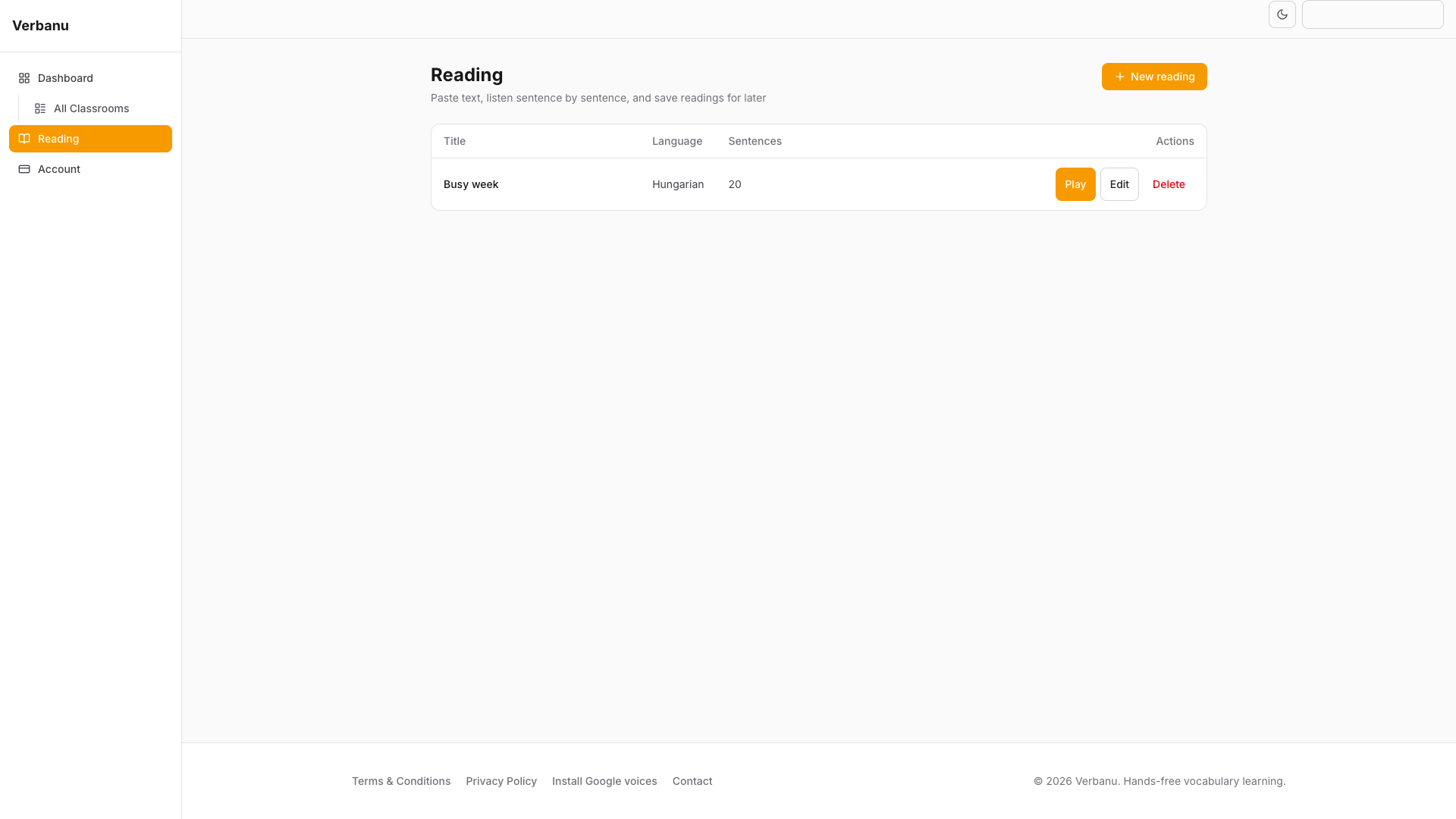
Reading is separate from vocabulary lessons. Paste an article, dialogue, or notes and listen sentence by sentence.

  1. In the sidebar, click Reading.
  2. Click New reading (or Create your first reading).
  3. Give it a title, choose the language, and paste your text.
  4. Click Save, or Save & Play to listen right away.

There is a maximum number of saved readings. If you hit the limit, delete an old one before adding another.

Reading library page in Verbanu dashboard
Reading library — paste text, save it, and listen sentence by sentence.

10 Choose voices

Verbanu uses voices already available in your browser (and operating system). The app does not install voices by itself.

  1. Open Choose voices from a lesson’s player settings, or Voices inside the player.
  2. Pick a voice for the learning language and one for your native language.
  3. Use the preview controls to hear a sample, then confirm.

For clearer, more natural speech in Chrome, follow the Install Google Voices Guide once per language on each computer you use.

Common questions

I signed in but I cannot create classrooms

Classrooms and cloud saving need Premium (Power Learner or founding member). Open Pricing in the app to check your plan.

There is no sound / the voice sounds robotic

Unmute the player volume, turn on audio for the learning language (and translation if you want it), and pick a better voice under Voices. For the best quality in Chrome, follow the Google Voices guide.

Enter & Preview says there is an error

Check that each line has two sides separated by a comma. Put quotes around fields that contain commas. Use Formatting tips or download the sample CSV and match that pattern.

I added words but nothing plays

Words must be in a list, and that list must be selected inside a lesson. Create a lesson, check the list, then click Save & Play.

The resume window keeps appearing

That means you left a lesson partway through. Choose Continue where I left off or Start from the beginning. Starting from the beginning clears that mid-lesson position.

Can I use Verbanu on my phone?

Yes in a browser, but the richest voice options are on Chrome desktop (and Chrome on Android). Fullscreen on a laptop or tablet works well as a “wall display.”

Still stuck?

Email support@verbanu.com or use our contact page — we are happy to help.